
Can One Pair of Bluetooth Headphones Work with Two Devices? A Quick Overview
Surprising fact: many modern Bluetooth headphones can keep two devices connected at once, but not all do it the same way. You might stream music from your laptop while staying connected to your phone for calls. Understanding the limits will save you time and frustration.
In this article you’ll learn when dual connections are possible, what “multipoint” means, and how to check your gear. You’ll also get clear steps for pairing, tips for managing audio and call priority, and fixes for common issues. By the end you’ll know exactly how to set them up easily.
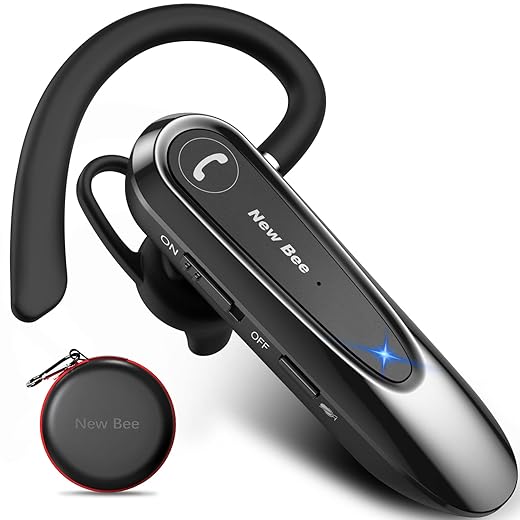
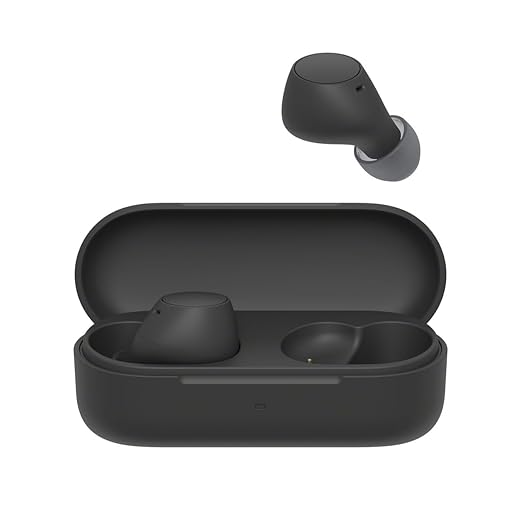


Understanding Bluetooth Multipoint and How Dual Connections Work
What multipoint actually means
Bluetooth multipoint (often marketed as “dual-connect” or “2-device multipoint”) lets your headphones maintain simultaneous connections to two source devices. Practically, that means you can stream music from your laptop while staying linked to your phone for incoming calls. Think of it as short-term multitasking for audio: two links, one headset.
The profiles that make it work
Two Bluetooth profiles govern most of what you’ll notice:
If a headset supports multipoint but only prioritizes HFP on the second device, you might get calls from your phone but not be able to play simultaneous music from both sources.
How manufacturers implement multipoint
This is handled in firmware: a connection manager inside the headset negotiates which profiles run with each device, stores pairing information, and decides priority. More advanced headsets (Sony WH-1000XM4, Bose QC35 II, many Jabra models) implement true multipoint for two active devices; budget models often limit you to one active A2DP stream and one standby device.
What to expect in real life
Quick tip: check product specs for “multipoint” or test by playing music on one device and calling the other to observe takeover behavior.
How to Check Compatibility: What to Look for in Your Headphones and Devices
Where to look for multipoint support
Before you try pairing, do a quick fact-check. Look for the word “multipoint,” “dual connect,” or “2-device” in:
If the marketing copy is vague, a short search in the manual or FAQ usually gives a definitive answer.
Bluetooth versions, profiles, and codecs — what they mean for you
Check three technical items:
Quick example: a laptop streaming hi-res audio over aptX HD might drop to SBC when your phone connects for calls.
How device types and OS behavior differ
Phones, tablets, laptops, and smart TVs run different Bluetooth stacks:
Firmware, apps, and a practical checklist
Before pairing, do this:
If a mismatch shows up, vendor support forums often reveal model-specific quirks and fixes you can use.
Step-by-Step Pairing and Connection Methods for Two Devices
You’ll find clear, actionable pairing sequences for common scenarios below. Each set of steps follows the same pattern: pair the first device, then put the headphones into pairing or multipoint mode for the second. Watch for LED flashes, voice prompts, and the headphones appearing in the device Bluetooth list as confirmation.
Pairing two smartphones
- Turn on Bluetooth on Phone A and put your headphones in normal pairing mode.
- Select the headset on Phone A and confirm the connection (LED steady, voice prompt like “Connected”).
- On the headphones, enable multipoint (if required) or re-enter pairing mode for a second device—often by holding the power button or a dedicated pairing button for 3–5 seconds.
- On Phone B, open Bluetooth, find the headset, and pair. Look for a second “Connected” prompt or both phones showing “Connected” for media/calls.
Tips: If Phone B won’t pair, disable Bluetooth on Phone A temporarily, pair B, then re-enable A to allow dual registration.
Pairing a phone and a laptop
- Pair the phone first (media + call profile).
- Put headphones into multipoint or pairing mode again.
- On the laptop, open Bluetooth settings, pair the headset, and choose “Hands-Free” and “Stereo” profiles if prompted.
- Test by playing music on laptop and making a call on phone.
Real-world note: Windows laptops often need you to choose the audio output device manually in system sound settings.
Phone + tablet or device-specific quirks
If pairing fails, reset the headset (hold power + volume for 10s or follow manual), then repeat. Next, learn how to manage media, calls, and which device gets priority when both are connected.
Managing Media, Calls, and Priorities Between Two Connected Devices
How routing and priority usually work
When two devices are connected, Bluetooth treats media (A2DP) and calls (HFP/HSP) separately. Most headsets prioritize phone calls: an incoming call on one device will pause music playing from the other and switch to the call audio. With multipoint, many headphones hold two A2DP streams but will always route HFP to whichever device rings.
Use device settings to influence routing
You can often force which device feeds audio by changing the default output or disabling specific profiles:

AVRCP, call profiles, and remote control behavior
AVRCP is what lets your phone or laptop pause, play, and skip tracks remotely. If AVRCP commands seem delayed, check for firmware updates. HFP/HSP handles call audio; when HFP activates, some headsets reduce audio quality to preserve the microphone link (hands‑free profile). Real-world example: a Sony WH-1000XM4 will drop into call mode on an iPhone immediately, pausing Spotify on a connected laptop.
Practical tips to avoid unwanted switches
If interruptions still happen, the next section walks through targeted troubleshooting steps and fixes for common scenarios.
Troubleshooting Common Problems When Using Two Devices
You’ll be guided through likely causes and quick fixes for the problems you’re most likely to hit when running two devices: dropouts, lag, reconnection failures, stutter, poor quality, and fast battery drain. Each entry gives probable causes and clear step‑by‑step remedies so you can get back to listening.
Dropouts or intermittent audio
Likely causes: RF interference (crowded Wi‑Fi/USB‑C hubs), range issues, or too many active Bluetooth radios nearby.
Remedies:
Real-world: on commuter trains you’ll often see dropouts from many overlapping Bluetooth/Wi‑Fi signals — moving to a window or switching the phone to airplane mode (then re‑enable Bluetooth) often helps.
Audio lag or desynchronization (video out of sync)
Likely causes: codec mismatch (SBC vs AAC vs aptX/LDAC), or one device prioritizing low-latency.
Remedies:
One device won’t reconnect
Likely causes: full pairing memory, Bluetooth stack hiccup, or device profile conflicts.
Remedies:
Stuttering or degraded audio quality
Likely causes: codec fallback, low battery, or firmware bug.
Remedies:
Rapid battery drain
Likely causes: always-on multipoint, app background processes, or a failing battery.
Remedies:
How to diagnose the culprit
When to contact manufacturer support
If resets, firmware updates, and isolation tests fail, or you see physical issues (overheating, swollen battery, persistent disconnects), open a support ticket — include logs/screenshots and firmware versions.
If these steps don’t clear the issue, the next section looks at alternatives and advanced solutions when your headphones don’t support robust dual connections.
Alternatives and Advanced Solutions When Your Headphones Don’t Support Dual Connections
If native multipoint fails or is unreliable, you can still get two devices working with one headset by using a mix of hardware and software workarounds. Below are practical choices, trade‑offs, and setup tips so you pick the right path for calls, media, travel, or home use.
Hardware options

Software and system-level solutions
Trade-offs and how to choose
Quick setup tips
Next, the Conclusion will summarize the best choices for common scenarios and help you finalize the setup that fits your lifestyle.
Get Two Devices Working Seamlessly with One Pair of Headphones
Verify multipoint support first, then confirm Bluetooth versions and profiles on both devices. Pair in recommended order—primary device first—so your headphones recognize call and media priorities. Use your headphone app or device settings to assign priorities, and switch audio output on secondary device when needed. If connections fail, follow troubleshooting steps: reset, re-pair, update firmware, and minimize interference.
If your headset lacks multipoint, consider a Bluetooth adapter, audio mixer, or app-based workarounds. Try the action list now, test devices, and you’ll be ready to use one pair with two devices.