
Why tuning your e‑ink matters in bright sun
Sunlight can make an e‑ink page look washed out and lifeless, yet small changes often restore crisp contrast. You want text that stays sharp without draining battery or buying new hardware.
In this guide you’ll learn practical on‑device settings, simple hardware tweaks, and content-layout tips to keep reading outdoors comfortable. Each change is quick and reversible.
Expect hands‑on advice: contrast, front‑light control, refresh modes, glare reduction, and routines to troubleshoot stubborn glare. By the end you’ll read confidently in bright sun with minimal tradeoffs. You’ll save time, eyestrain, and battery life too.


How e‑ink responds to sunlight: the fundamentals you need
Reflective vs. emissive: different light strategies
E‑ink screens are reflective: they don’t make light, they bounce ambient light back to your eyes the way paper does. Your phone or tablet is emissive — it glows. That difference is why e‑ink reads comfortably in bright daylight (no washed‑out glow) but can struggle with strong direct reflections that hide the inked pixels.
Contrast and reflectance, in plain words
Two simple numbers matter: how white the screen appears (reflectance) and how dark the black pixels get (contrast). If the white is very bright and the black is deep, text looks crisp. In bright sun, the overall scene gets brighter, but specular highlights (mirror‑like reflections) can locally overwhelm the tiny black particles and make letters look washed or disappear entirely.
How front lights interact with direct sun
Front lights are diffuse and aimed at the display surface to help in low light. They improve contrast in shade, but in direct sun they’re mostly irrelevant compared with sunlight’s intensity — and they can even reduce perceived contrast by adding extra uniform light. In short: keep the front light on in dim conditions, dim or turn it off in blazing sun.
Glare and specular reflections: the real enemies
Glare is a bright patch that reflects the sky or sun; specular reflections act like tiny mirrors. These hide whole words or columns depending on where you sit. They’re worse on glossy glass (found on many premium e‑ink readers) and change as you tilt the device or move your head.
Practical reading implications and quick fixes
Real‑world check: at the beach you’ll often need to slightly tilt the reader and lower front light; in a car parked under a tree, front light + contrast boost usually solves it. Adjust angle first — it’s the fastest, lowest‑effort fix.
Optimize on‑device settings: contrast, front light, and refresh modes
Contrast and boldness: make the ink pop
When sunlight washes letters out, the first tune is contrast and font weight. Increase display contrast in your reader’s settings or choose a heavier font weight/boldness — many Kobo and Kindle models let you slide a “contrast” or “boldness” control. If you read PDFs, try reflowing text or switching to a sans serif with stronger strokes (e.g., Bookerly, Caecilia, or Kobo’s Kobo Nickel renderings).
Quick how-to:
Anecdote: at a picnic my friend bumped boldness + font size on a Paperwhite and the text instantly became readable without shading the screen.
Front light and color temperature: when to use — and when to kill it
Front light improves low‑light contrast but competes with bright sun. In direct, harsh sun, turn the front light off or to the lowest setting; in bright overcast or dappled shade, a low-to-medium front light often helps. If your reader has color temperature (warm to cool), lean slightly cooler (less orange) outdoors—cool light preserves perceived blackness better under daylight than very warm tones.
Practical rule:
Refresh modes: balance ghosting and battery
E‑ink devices offer partial (fast), normal, and full (clean) refresh. Partial refresh is quick and battery-friendly but gradually produces ghosting (faint remnants). Full refresh clears ghosting but visibly flashes and uses more power.
Best practices:
Save presets and accept trade‑offs
If your device supports profiles (Onyx Boox, some Kobo/Kindle firmware or KOReader), create an “Outdoors” preset with higher contrast, bold font, front light off, and a scheduled full refresh interval. If not, jot down your preferred settings for quick manual switching.
Trade-offs to accept:
Hardware choices and physical tweaks that cut glare
When settings aren’t enough, small hardware changes and simple physical moves make the biggest difference. Below are practical fixes you can try right away.
Screen protectors: matte vs glossy
Matte (anti‑glare) protectors scatter strong specular reflections so letters stay visible, but they add a slight “haze” that can soften fine strokes. Glossy protectors preserve the crispest contrast and are easiest to clean, yet they act like tiny mirrors in direct sun.
Quick how-to:
Anti‑glare films and AR coatings
Anti‑glare films come in frosted (matte) and anti‑reflective (multi‑layer AR) types. AR films reduce reflections with less haze than frosted films but are typically pricier.
Tip:
Shades, visors, and hoods
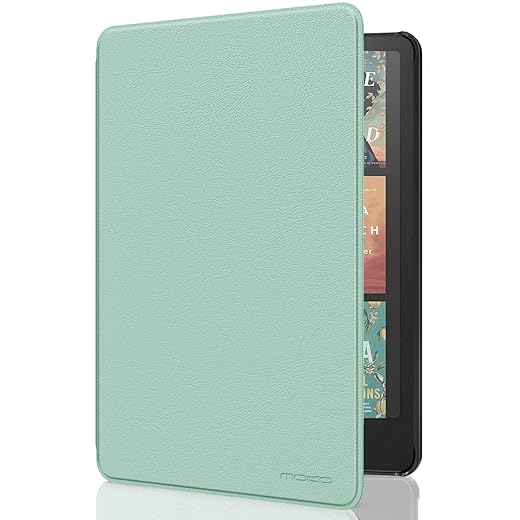
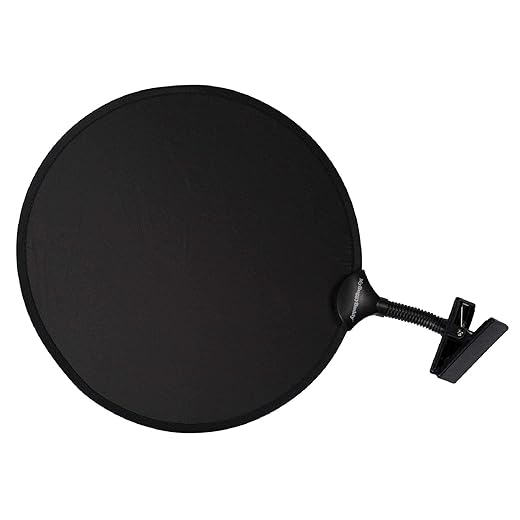
Clip‑on or built‑in visors block direct light without dimming the screen. You can buy tablet sun shades or use a folio case with a stiff hood.
Practical picks:
Angle, orientation, and your body as a tool
Specular glare depends on geometry: change the angle so the sun doesn’t reflect straight into your eyes. Tilt the device slightly away, rotate it, or move to a grazing angle. Use your body or a hat as an improvised shield—lean back, position your torso between sun and screen, or hold the device under your hat’s brim.
Real‑world trick:
Polarized sunglasses: try before you commit
Some polarized lenses can make an e‑ink screen look dark, have banding, or change contrast depending on head tilt. Before relying on polarized sunglasses, test them by rotating your head 90°—if the screen blacks out or shows stripes, switch to non‑polarized lenses or adjust the device angle.
Pros and cons:
Maintenance: clean and inspect
Keep the display and protector clean with a microfiber cloth and a little water or 70% isopropyl if needed. Avoid abrasive cleaners. Check for scratches—tiny nicks scatter sunlight and worsen glare; replace protectors or consider a professional polish if they’re severe.
Adjust content and reader layout for outdoor clarity
Pick fonts that stay bold in sunlight
When letters are competing with bright reflections, the letter shape matters as much as size. Choose fonts with a high x‑height and open counters so lowercase letters look large and distinct at a glance. Good choices: Bookerly or Ember on Kindle, Roboto/Helvetica/Open Sans on other readers, or system fonts like Verdana and Tahoma. Avoid thin, condensed, or decorative typefaces (Didot, Bodoni, swash serifs) — they disappear into glare.
Increase size and breathing room
Larger type and more spacing improve apparent contrast and reduce eye fatigue outdoors. As a rule of thumb:
Prefer high‑contrast themes, but test inverted modes
Dark text on a light background usually reads best in direct sun because e‑ink works by reflecting ambient light. Inverted (white on black) can help when reflections reduce peak brightness, but it often looks flatter. Try both quickly in your reading spot and stick with the one that delivers crisper edges.
Reflowable text vs PDFs (fixed layouts)
For outdoor use, reflowable formats (EPUB, MOBI) are usually superior because you can change font, size, spacing, and margins on the fly. PDFs lock those choices; they often force tiny text and cramped layouts. If you must use PDFs:
Justification, hyphenation, and perceived contrast
Full justification can create uneven word spacing that reduces edge definition. Left-aligned text with consistent inter-word spacing often looks sharper. Hyphenation can either help by reducing gaps or harm legibility by breaking familiar word shapes—turn it off if words feel chopped.
Build an “Outdoor” reading profile — step by step
These small, repeatable adjustments make a dramatic difference: you’ll spend less time squinting and more time enjoying the words.
Practical routines and troubleshooting for consistently readable outdoor use
Quick checklist to run before you step outside
Quick presets to toggle (examples you can save)
Fast ghosting test and refresh flow
- Open a blank white page (or a simple page with lots of white space).
- Turn a page to a full black page or open a black image.
- Look for faint outlines of the previous page (ghosting).If ghosting is noticeable (letters or shapes visible), force a full refresh:
Battery and refresh management
Persistent problems and when to upgrade
Everyday best practices
Use these routines whenever you go outside; they’ll get you back to crisp, distraction‑free reading quickly and reliably, then read on to the Conclusion for final finishing tips.
Get crisp reading outdoors with a few easy tweaks
Understand how sunlight interacts with e‑ink, tweak contrast, front light, and refresh mode on your device. Use anti‑glare films, matte screen protectors and hooding or shade to cut reflections. Adjust fonts, spacing, and themes for high contrast and large x‑height; text stays legible in bright conditions.
Keep a short troubleshooting checklist: reset display settings, update firmware, test different refresh modes, and try hardware adjustments. Try a few presets and one tweak at a time to find what works best for your typical outdoor conditions, save that setup and enjoy clearer reading.