
Why I Optimise My Venu 3 Before Every Trip
I travel often and depend on my Garmin Venu 3 to last through long days; here I share the power-saving modes I enable, why they matter, and exactly how I configure them so my watch endures reliably on every trip.
What I Need Before I Start
I have my Garmin Venu 3 (latest firmware), charger and power bank, my smartphone with Garmin Connect, basic comfort changing watch settings, and a few uninterrupted minutes to tweak and test.
Step 1 — Prepare and Audit: Know Your Baseline
Why I start by auditing everything — could 10 minutes of prep add a day of battery?Update the watch and phone: open Garmin Connect, install any pending firmware updates, and confirm the phone OS is current.
Sync the watch and back up settings: export workouts and save custom watch faces so you can restore them if you reset the device.
Audit current settings: note these quick wins before you change anything.
Write down your baseline battery life after a normal day so you can measure improvement. Clean up unused apps and widgets—remove heavy refreshers like weather or news widgets that update frequently (example: delete a live weather widget and check weather on your phone instead). Remove old Bluetooth pairings and disable auto-sync for apps you won’t use while traveling.
Charge the watch to 100%, pack the charger and a power bank, and set a target battery percentage plus which features you’ll sacrifice if the watch dips below that threshold.

Step 2 — Tame the Display and System Behaviours
Turn off the things that nag me: small changes, huge gains — I cut standby drain dramatically.Turn off the always-on display so I avoid constant backlight drain.
Set the screen timeout to the shortest comfortable duration (10–15s) and reduce brightness to a readable outdoor level (around 30–50%); disable auto-brightness if it tends to over-brighten.
Create or enable the watch’s battery saver or a custom “Travel Saver” profile and save a settings snapshot so I can toggle power mode quickly without losing key features.

Step 3 — Configure Sensors and Activity Recording
Do I really need GPS every minute? How I trade tracking detail for multi-day endurance.Configure sensors and activity recording — these are the hidden battery hogs on long trips.
Choose a less aggressive GPS mode for casual runs and hikes when precise track detail isn’t essential. Lengthen the GPS recording interval if your watch allows (for example, 1s → 5–10s). For multi-day trips switch to Expedition/UltraTrac to sample much less often (think 30–60s or longer).
Disable continuous SpO2 during sleep unless I’m tracking a medical issue. Set heart rate sampling to Smart or Off on low-intensity days to cut background polling.
Pre-plan workouts: download maps and routes on Wi‑Fi, disable live segments/Strava Live, and use simplified data screens during activities.
Test a typical activity on a travel day, watch the drain, and iteratively adjust sampling intervals until I reach the endurance vs. data balance I want.

Step 4 — Automate and Schedule Power Profiles
Airplane mode isn’t just for planes — my schedule makes saving automatic and painless.Create a dedicated Travel power profile: disable nonessential sensors (continuous SpO2, Wi‑Fi), lower heart‑rate sampling, shorten notification sources, and tighten screen timeout. Save it for reuse.
Assign the profile to quick access: add it to the control menu or map it to a hardware shortcut so I can toggle with one tap when boarding or swapping time zones.
Schedule automatic behaviours: set Battery Saver to engage during flights or long layovers (for example, enable at typical boarding time or after 30 minutes of inactivity) and set Do Not Disturb for sleep windows to silence alerts.
Switch to airplane mode on planes and only re-enable Bluetooth briefly for headphones if needed. Use a compact, high‑contrast static watch face and remove animated complications to cut display drain.
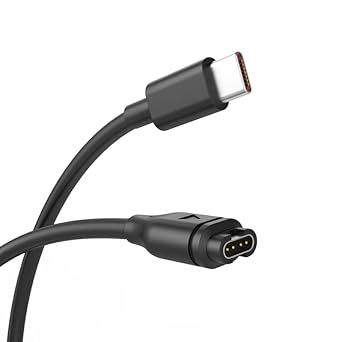
Pack a charging plan: top up my watch during every 30–60 minute layover, carry a small power bank, the shortest USB cable possible, and a tiny wall adapter.
Rehearse the toggle sequence once before travel so I can flip modes fast at checkpoints or gate changes.
Step 5 — Monitor, Test, and Carry an Emergency Plan
How I test and tweak until my watch outlasts the trip — real numbers guide my choices.Monitor results: I keep a simple log during the first two travel days — starting %, end‑of‑day %, active modes, and notable activities — so I can see which tweaks matter most.
Set alerts and thresholds: I configure low‑battery warnings (for example, 40% to conserve, 20% to trigger emergency measures) and build an emergency power profile that disables everything except the watch face, time, and essential notifications.
Test recovery and practice: I learn how a 15–20 minute top‑up restores hours of life and when to accept lower sampling rates. I practice toggling the emergency profile one‑handed so it’s automatic during busy gates or overnight layovers.
Create a short mental checklist I carry: firmware updated, charger packed, power profile ready — that simple list gives me confidence my Venu 3 will outlast long travel days.
Final Confidence: Travel Ready
I’ve shared my practical routine for squeezing extra life from my Venu 3 while traveling; with a few setting tweaks, quick profiles, and mindful charging I typically double usable battery, travel calmer, try it, and share your results with me.

Haha, Step 2 saved me from a 1% battery panic last month. Pro tip: drop brightness to 10% and disable always-on display — you’d be surprised.
Also, anyone else find the settings menu a bit hidden for the sensor tweaks? Took me a while to find blood-ox settings 😅
I made a sticker in my wallet with the steps lol. Brightness + AOD = instant life saver.
Also turn off auto-brightness if you travel through different timezones — it can spike unexpectedly.
Yep, the Garmin menu can be nested. I usually add a quick note in my travel checklist with exact menu paths so I don’t fumble.
Totally — auto features are convenient but sneaky battery drains when you’re on the go.
Good call on a checklist! For others: Settings > Sensors & Accessories > (sensor) or Performance > Physiological to find some of those toggles.
Curious about Step 3: if I disable GPS during travel, will my activity data be too useless? I mostly care about step counts and battery life.
Has anyone tested leaving GPS off but keeping step/activity on?
I travel a lot and I keep GPS off unless I go on a hike. Steps are still solid, and battery saves a ton.
Good question — GPS off will still let the watch track steps and basic activity. You’ll lose route mapping and accurate pace/distance for runs, but for travel days that’s usually fine.
Solid, concise guide. I liked the emergency plan bit — I always pack a small power bank and the old school charger cable in a different bag so I’m not stranded. No replies needed, just wanted to say thanks!
So I followed all steps except Step 4 because scheduling sounds like something only very organized people do.
Results: battery lasted longer anyway, but I did miss the automated wake-up to re-enable notifications. Moral: automation is terrifying but kinda necessary.
Also, tbh, the whole ‘Prepare and Audit’ step felt like a mini-therapy session for my tech-hoarding brain.
Start small: just one scheduled profile for ‘Travel’ and test it. If it annoys you, tweak it. Totally reversible.
I set automation to mirror my calendar: whenever I’m marked as ‘travel’ it kicks in. Was weird at first but now it’s seamless.
You’re not alone — automation can feel overkill, but simple schedules (flight mode at 22:00 to 06:00 or similar) save a lot of manual fiddling.
And keep the emergency plan handy — manual override from the quick settings if automation misbehaves.
Ooh calendar integration — I’ll try that. Thanks! Also yes, therapy for my notifications lol.
Nice breakdown. Small tip from my trips: carry a tiny USB-C to USB-A adapter and a 10W charger — the watch tops up faster on a decent wall charger than from some sketchy airplane USB ports.
Also, when testing profiles (Step 5), simulate a 24-hour cycle quickly to see the impact — it saves surprises mid-trip.
Excellent practical tip, Maya — adapter + reliable charger is in the ’emergency plan’ for sure. And the 24-hour simulation is something I should highlight more.
Agreed — some airplane USB ports are ancient. A small charger in your carry-on is clutch.
This guide is gold — I do almost all of these before flights now.
I especially liked Step 1: auditing my baseline battery because I used to forget which apps were the real culprits.
One question: when you automate power profiles, do you switch off heart-rate completely during long flights or just reduce sampling? I worry about missing sleep data on red-eyes.
Also, tiny nit: a screenshot of the scheduling screen would make Step 4 even more useful.
Thanks for the practical tips!
Great point, Claire — personally I reduce HR sampling (smart intervals) rather than turning it off, so I keep a basic sleep record without huge drain. Totally agree about the screenshot, noted for an update!
I turn off continuous HR on long flights and enable it again when I land — gives me way more standby. If you want sleep data, try enabling HR for just the first/last hour of sleep.
If you want a middle ground: set the profile to ‘low-power’ during the flight and enable a short ‘sleep check’ schedule. That keeps the essential metrics without full-time sampling.
Love the format — the step-by-step made it easy to copy into my pre-trip routine.
Constructive: maybe add a short ‘what to keep on’ checklist — like ‘Bluetooth on/off?’, ‘Notifications: essential only?’ — small TL;DR for forgetful people like me.
Otherwise, bravo 👏
For me: keep Bluetooth on if you use wireless earphones; otherwise off. Notifications only from really important apps = fewer wake-ups.
If you want a template I use: Bluetooth=off, AOD=off, Notifications=priority only, HR=pulsed, GPS=off. Works great.
Also consider using Do Not Disturb schedules tied to your travel profile — saves battery + sanity.
Great suggestion, Hannah — I’ll add a one-line TL;DR checklist (Bluetooth, Notifications, HR sampling, AOD, GPS) in the next revision.
Quick FYI: I accidentally left the altimeter sensor on during a flight and it probably pinged a few times — noticed battery drop. 😂
Lesson: double-check sensors under Step 3. Also — love the emergency plan idea. 🙂
Haha, those auto-sensors can be sneaky. Good catch — I’ll add a short bullet reminding people to check altimeter/barometer if they’re not using it.