
Why I Rely on Satellite SOS from My Wrist
Ever been truly off the grid and felt that hollow knot of worry? I have, and that’s why I value SATELLITE SOS on my smartwatch. It gives me fast peace of mind when cellular and Wi‑Fi vanish, turning my wrist into a lifeline I can carry into the backcountry, on solo rides, or during storms.
In this short practical guide I’ll show you how the system works, how I set up and test it, how I use SOS and satellite messaging in real situations, and how I confirm help is on the way. I keep the steps clear, the checks repeatable, and the tips focused on safety and privacy. I also include troubleshooting steps and alternatives for edge cases too.

How Satellite SOS and Messaging Actually Work on a Smartwatch
The basic idea — in plain language
When I tap SOS on my watch, it’s not magicked through the air like a phone call. The watch either uses a built‑in satellite transceiver or routes data through a paired phone acting as a bridge. That transceiver sends a short burst of compressed data to a low‑earth‑orbit (LEO) or other satellite, the satellite relays it to a ground station, and the ground station forwards the message to an emergency relay or to local dispatch.
What the system can and can’t carry
Because satellite links are limited, messages are tiny and prioritized. In practice that means:
I use devices like watches with built‑in satellite SOS or watches paired to satellite communicators (for example, watches that work with Garmin inReach or Apple’s Emergency SOS via satellite) to balance convenience and capability.
Practical effects of latency and limited bandwidth
Latency and low bandwidth mean I keep messages concise and actionable. I avoid long narratives and include only essential facts: my position, the type of injury or threat, number of people, and any immediate hazards. GPS can take time to get a good lock under heavy tree cover or deep canyons, so I hold still in an open patch and wait a minute or two for coordinates.
How confirmations and routing look in real life
Typically I see a “message sent” then a later “rescue is on the way” or a short two‑way reply. If I get no confirmation, I retry once, move to better sky view, or switch to voice/phone if available. Next I’ll show how I prepare my watch and accounts so those first messages work when it counts.
Preparing My Watch: Settings, Account Links, and Prechecks
Enable the satellite features and link accounts
First thing I do is enable the watch’s satellite/SOS feature in Settings and confirm any required service activation. On an Apple Watch Ultra I enable “Emergency SOS via Satellite”; with Garmin I check the watch is paired to my inReach or to Garmin’s satellite service and that my subscription is active. I also verify my carrier/third‑party account (some watches route via a phone plan or require a connected communicator).
Set emergency contacts and medical ID
I put my emergency contacts into the watch/phone contact list and mark them as ICE (in case the platform reads phone contacts). I fill out Medical ID/Health info (allergies, meds, blood type, emergency notes). That saved info often shows automatically to responders.

Prechecks I always run before a trip
I run a short checklist outdoors to avoid surprises:
Quick status and coordinate acquire test
I go outside, open the SOS or satellite status screen, and wait for the watch to report “Satellite: Ready” or show signal bars. My screenshots-style mental checklist:
If my watch supports a non‑emergency “check” or location share (some Garmin/ZOLEO apps do), I use that—never send a real SOS as a test. If the watch won’t get a lock, I step into a clear patch and try again.
Printed backup and final tips
Before I leave I print a small card with my name, emergency contacts, medication notes, and the watch model/service details—kept in my wallet and pack. These simple prechecks have saved me time and anxiety on multiple overnight trips, and they make triggering SOS straight‑forward when it matters most.
Step‑by‑Step: Triggering SOS and Sending a Satellite Message
Assess immediate safety
First thing I do is pause and take a quick scan: am I in immediate danger (medical, fire, life‑threatening) or do I need non‑emergency help? If I can move to a safer spot quickly, I do — better sky view improves success.
Initiating the SOS sequence
I use the device-specific activation (long press or menu). On most watches that means opening the SOS menu or holding the side/button combo; on Apple Watch Ultra you’ll see “Emergency via Satellite,” on Garmin paired to an inReach you’ll use the SOS button. I follow the on‑screen prompt to begin.
Follow on‑screen prompts and confirmations
I watch for these indicators:
I read each prompt carefully — some ask to confirm “Call emergency services?” or offer “Send check‑in.”
Sending supplemental or predefined messages
If available, I choose a predefined message (injured, stuck, need pickup) or type a short custom note (keep it under 160 characters). For ZOLEO/Garmin inReach, two‑way text often follows automatically; Apple Watch may send a short form and then allow follow up.
Orienting the watch to the sky
I hold my arm out, face up, with the watch face pointing at open sky and rotate slowly until signal bars improve. Line of sight matters: clear horizon > partial canopy > canyon.
Canceling a false alarm
If I started SOS by mistake I cancel immediately by tapping “Cancel” or following the on‑screen cancel sequence (usually within the countdown window).
Timing and battery tips
Typical timings: initial satellite handshake 20–60s, message upload 30–120s — plan for 1–3 minutes total. To conserve battery: enable low‑power mode, dim the screen, stop background apps, and resist frequent reattempts unless signal drops.
Using Satellite Messaging for Non‑Emergency Communication and Routine Check‑Ins
Why I use satellite messaging for routine updates
When I’m off the grid I treat satellite messaging like a lifeline for logistics, not chatter. It’s how I confirm I’m on schedule, send a short ETA, or ping a partner when cell service drops—simple, deliberate, and bandwidth‑aware.
Composing messages that actually get through
I keep messages tiny and useful. My go-to formula: who, where (if needed), status, and ETA.
Scheduling check‑ins and pairing with tracking
Before long outings I set an agreed check‑in cadence (e.g., every 3 hours) and share a tracking link when supported (Garmin LiveTrack, ZOLEO link). That way, if a text fails, my partner can still see progress on a map.
Verifying delivery and interpreting responses
I look for explicit confirmations: “Message sent,” “Delivered,” or a timestamped reply. Partial responses (e.g., truncated text or delayed delivery) are common — I treat them as weak signal, not silence. If no delivery confirmation and no map updates, I retry once, then wait and conserve battery.
When to switch to SOS
If my messages indicate serious injury, inability to move, or no response after multiple attempts while conditions worsen, I trigger SOS immediately. Messaging is for status; SOS is for safety.
Battery and environment tips I follow
I space transmissions (avoid minute‑by‑minute pings), dim the screen, and use low‑power modes. Open ridgelines and clear sky give the best results; dense canopy, steep canyons, and heavy cloud can delay or block messages—plan routes and timing accordingly.
Verifying That Help Is Coming: Confirmations, Troubleshooting, and What I Do Next
What a confirmation looks like
When I send SOS or a satellite message I look for three clear signals: an on‑screen acknowledgement (“Message sent,” “SOS connected”), a relay message from the service (e.g., an SMS from a satellite gateway or email from Garmin/Zoleo), or a timestamped reply from a human dispatcher. On my Apple Watch Ultra I’ve seen “Connection established” followed by a brief text; with a Garmin inReach paired to my Epix I get both the device notification and an email. Any one of those tells me my signal reached the network.
Quick troubleshooting I try immediately
If I don’t get confirmation I work through a short checklist — fast and methodical:
Canceling false alarms and what responders will ask
If I accidentally trigger SOS I cancel it immediately on my watch and confirm cancellation on the paired phone. If cancellation isn’t obvious, I call the number provided by the gateway.
Emergency services typically ask:
I keep answers short and factual.
Decision rules and documenting the event
I wait 2–5 minutes for a confirmation, retry twice, then move to a better spot or use alternative signaling (mirror, whistle, PLB). After the incident I screenshot confirmations, note times, GPS, battery level, and conditions—this helps debrief and improves my next outing.
Safety, Privacy, and Alternatives: Best Practices I Follow
Privacy and app permissions
I treat satellite SOS like any other sensitive service: it’s convenient, but it records data. Typical logs include timestamps, coordinates, device ID, and the message text. Emergency relays may share that with local authorities and search‑and‑rescue. I limit exposure by reviewing app permissions (location, contacts, microphone) and only granting what’s necessary. I keep my profile minimal—name, emergency contact—and avoid storing medical details in plain text in the device unless absolutely needed. I also regularly review the service’s privacy policy and export/delete old logs where possible.
Responsible use and legal considerations
I use SOS only for life‑threatening situations; satellite messaging or a phone call handles non‑urgent check‑ins. False SOS activations can tie up resources and in some regions may carry penalties. Before trips I check local rules—some countries restrict satellite transmitters or require permits, and national parks may have additional guidelines. When I must communicate, I keep messages short, factual, and relevant to rescuers.
Alternatives and redundancy I carry
I never rely on a single device. My compact kit includes:
These tools cover satellite, beacon, line‑of‑sight radio, and simple visual signaling—different systems, different failure modes.
Quick practice routine I follow
Once a season I test non‑emergency messages from each device, verify firmware and battery health, and run a short mock scenario with my partner (send location, confirm receipt, practice mirror/whistle signals). That repetition keeps the process automatic and builds confidence without making me dependent on the tech.
With these habits, I keep privacy tight, use SOS responsibly, and layer my safety so one device’s failure isn’t the whole story — which sets me up to move into the final wrap‑up.
Bringing It Together: Confident, Practical Use of Satellite SOS
I summarize: Satellite SOS connects my watch to satellites for emergency and low‑bandwidth messages, so setup, clear permissions, and prechecks are essential. I run through the step‑by‑step trigger, keep templates and location sharing ready, and use messaging for routine check‑ins when appropriate. I verify delivery through confirmations, follow troubleshooting steps, and escalate if needed.
I follow privacy practices, limit shared data, and maintain alternatives (phone, PLB, radio). Practice the flow, customize emergency contacts and messages, and build a simple redundancy plan so I’m confident wearing this capability on my wrist today.

This is a bit long but worth sharing — testing notes and a mini-story:
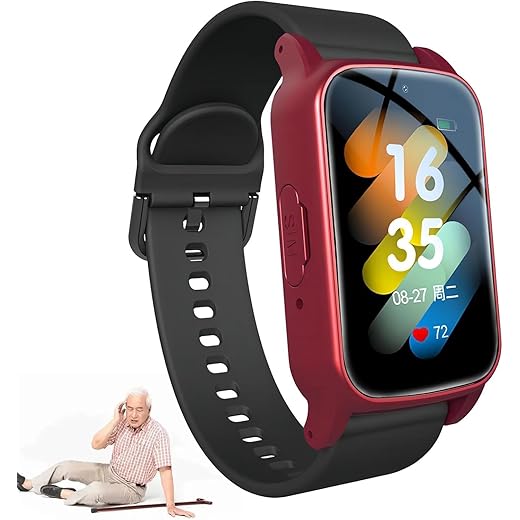
I bought a Senior SOS Smartwatch for my mom because she walks alone sometimes. We practiced the SOS flow together: account linking, emergency contacts, testing the satellite message, and verifying confirmations. The first time we hit SOS, the watch told us to wait and then sent the satellite message successfully. The second time, we got a weird error that cleared after I toggled airplane mode on/off.
What I liked:
– The watch’s simplicity suits seniors — big button, clear prompts.
– The guide’s suggestion to write a non-emergency template for check-ins worked great.
What I’d add to the article:
– A troubleshooting mini-flow for elderly users (simple phrasing, pictures of button presses).
– Mention compatibility issues (some carriers or watch models need extra app steps).
PS: if you have both a ZOLEO and the watch, pair them for redundancy — I use ZOLEO for long camping trips and the watch for everyday safety.
Thanks Olivia — that’s a really useful real-world example. I’ll expand the ‘Preparing My Watch’ and ‘Troubleshooting’ sections with a caregiver-friendly mini-flow.
I’ll add a short list of recommended features for senior-friendly watches (big SOS button, simple UI, long battery, clear voice prompts).
Ethan — we use a basic model with a single SOS button and large text. No fancy fitness features, which is a plus for clarity.
This is sweet — good idea to practice with family. And toggling airplane mode is a surprisingly effective reset trick.
As someone who assists my elderly neighbor, I appreciate this. Any recommendations on which Senior SOS Smartwatch models are easiest?
Super useful read. Short and to the point. I’ve used a ZOLEO before and the messaging is clutch when you’re off-grid. One question: do you ever use both the watch and a device like the McMurdo as a backup? Seems redundant but might be worth it for long trips.
I tried the SOS trigger in a local park (test mode) and it took longer than expected to get confirmation. Article’s troubleshooting tips helped — turns out the watch needed a clear view of the sky (shocking, I know 😂). Also learned that the McMurdo FastFind 220 uses a different activation process, so don’t assume it’s the same as a smartwatch.
Couple of quick tips from me:
1) Practice triggering once at home (without sending a real alert) so you know the motion/hold timing.
2) Carry a small power bank for the watch on long hikes — messaging can eat battery.
Yes — sky view is critical. I added a brief checklist for best positioning (face up, held high, away from dense canopy). Thanks for the power bank tip too.
Did you use ZOLEO or the watch for the test? Wondering if one confirms faster in urban vs remote areas.
Very practical and well written. I only have one small critique: the article assumes a fair bit of tech comfort. Maybe add a bullet list of “must-know basics” for absolute beginners (e.g., how to find and install the companion app, where to put emergency contacts, how to check satellite coverage maps).
Otherwise, solid — I’m bookmarking this for my next trip.
Heads up — small typo in the step-by-step where it says ‘press and hols the button’ 😉 Other than that, great concise guide.
Also: has anyone compared activation time between the Senior SOS Smartwatch SOS and the McMurdo FastFind 220 when you’re in dense forest? I’m wondering which is faster to get a fix.
I tested both once in a wooded valley — McMurdo registered slightly faster, but neither was instant. Clearings are your friend 🙂
Thanks, Harper — fixed the typo. Regarding activation time: in dense forest both can be slower. The McMurdo can be faster for a pure distress signal because it’s a dedicated beacon, but line-of-sight matters a lot for both devices.
Loved the step-by-step walkthrough. The screenshots (if any) would help, but the written steps are clear.
A couple thoughts:
– For non-emergency check-ins, make a template message on your watch if possible. Saves time.
– Battery management: keep the watch in power-save during long waits after sending an SOS.
Also — slightly worried about privacy settings you mentioned. Are we sharing location history with the satellite provider? 😬
Thanks for the follow-ups everyone — added more explicit steps to check app permissions and history for both ZOLEO and watch companion apps.
I’d be more worried about the battery than the tracking tbh 😅. But yeah good to check the companion app settings.
If you’re really worried, carry the McMurdo FastFind 220 instead — it’s just a beacon, no fancy app tracking. Less data shared, but also fewer features.
Great points, Sophia. I do recommend keeping a short templated message for check-ins. Re: privacy — most systems share only the necessary telemetry for rescue (location, device ID, message content you send). However, some companion apps may sync a history. I added a paragraph under Safety & Privacy clarifying that you can often disable continuous tracking in the app and only allow telemetry during an SOS.
To answer the privacy bit: my ZOLEO app keeps a message log on my phone but I turned off background sharing. You’ll want to review the app permissions.
This guide was super practical — I especially liked the prechecks section. I didn’t realize you should link the account BEFORE you try the SOS button. Quick note: on my Senior SOS Smartwatch the menu labels were slightly different, so I almost missed the satellite option.
Thanks for the tip about verifying help is on the way (the confirmation messages). Saved me from panicking the first time I tested it in a field — got a neat status reply and felt way more confident.
Good catch — thanks, Ava. I tried to call out the label differences for a few common watches but glad you mentioned the Senior SOS Smartwatch specifically. I’ll add a quick note about alternative menu names in the article.
I had the same issue with the Senior SOS watch — the satellite setting was under “Connections” rather than “Safety” on mine.
Nice! Did you test it with the McMurdo FastFind 220 too or just the watch? I’m curious how the personal beacon compares for reliability.
Quick question: when you send a satellite message for non-emergency check-ins, does it go through the ZOLEO network or the watch provider? I’m considering getting the ZOLEO Two-way Satellite Communicator for my hikes but want to know about integration.
Good question. It depends: some smartwatches use their own satellite service; others can forward messages via connected apps. ZOLEO devices use Iridium via their own service. If integration matters, check whether the watch app supports forwarding to ZOLEO or if you’ll run them as separate systems. Many people carry both for redundancy.
This article convinced me to buy a backup device. I got a ZOLEO Two-way Satellite Communicator last month and have been pairing it with my watch. Having both gave me peace of mind on a recent overnight trip when I had no cell coverage.
Couple real notes:
– The ZOLEO app stores message history which is handy.
– The McMurdo FastFind 220 is super rugged but it’s a dedicated beacon — no two-way messaging.
Would love if the author did a short comparison chart in the article (features vs use cases).
Ethan — how’s the battery on the ZOLEO for you? I’m curious if you recharge daily or less often.
Zoleo is great for messaging but remember it’s another device to manage. Worth it for longer trips for sure.
Exactly the use cases I had in mind — I’ll add a concise comparison chart covering typical scenarios (day hike, multi-day remote, senior safety, vehicle emergency). Thanks!
Battery lasts several days with light use. I top it up every couple of nights on a multi-day trip.
Short and honest: I appreciated the balance between “don’t panic” and “this is serious.” The privacy section was reassuring. A few extra clarifications would help — e.g., when exactly to use the McMurdo FastFind 220 vs the watch. Also, small thing — add a note about cold weather and battery drain (I learned that the hard way).
Also, lol at the ‘what I do next’ checklist — very practical.
Cold weather kills battery — I keep mine in an inner pocket and only take it out when using. Works wonders.
Agree with the pocket trick. Also, turn off unnecessary sensors on the watch during long trips.
For seniors, cold weather also means less dexterity. Practice button presses with gloves on.
Thanks Grace — I’ll add a cold-weather battery note and a clear table-like comparison (watch vs McMurdo vs ZOLEO) in plain language.