
Why Fall Detection on Apple Watch Series 9 Matters
I explain how to set up and use Fall Detection on the Apple Watch Series 9 to protect a senior, covering enabling the feature, adding and prioritizing emergency contacts, testing safely, coaching the senior, and responding calmly to alerts everywhere.
What I Need Before I Start

Step 1: Confirm compatibility and update software
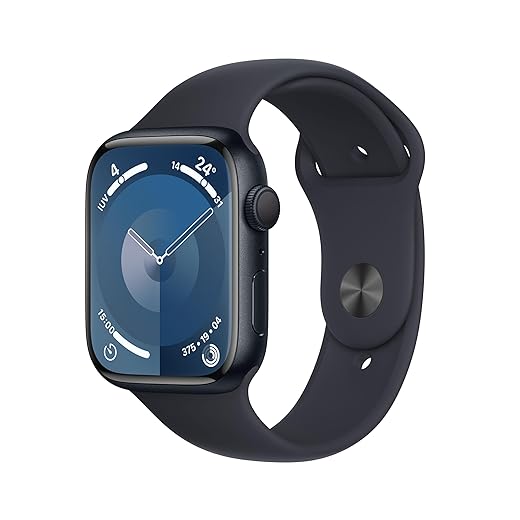
Don’t skip this—old software breaks lifesaving features. Want it to work every time?Confirm the watch is an Apple Watch Series 9 and check that the paired iPhone is running the latest iOS.
Open the Watch app on the iPhone and check these settings:
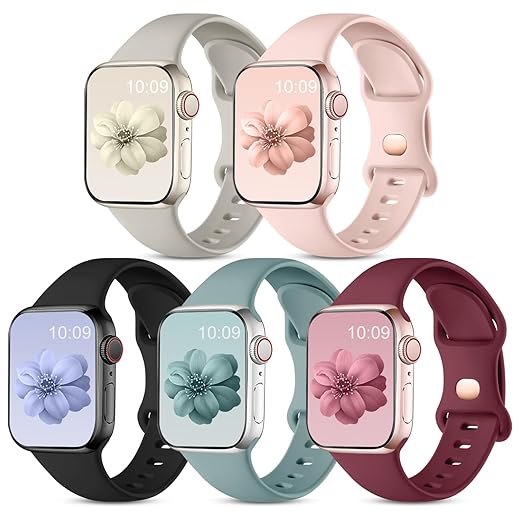
Ensure the watch fits snugly on the senior’s wrist and that battery health is adequate for daily use. Plug the watch onto its charger and run any watchOS updates through the Watch app, following prompts. Verify the iPhone has active Wi‑Fi and cellular so location and fall alerts reach emergency services and contacts. For example, I once updated both devices before a weekend trip to avoid delayed alerts. Verify connectivity and location accuracy so help can arrive quickly.
Step 2: Enable Fall Detection and Emergency SOS
Want the watch to call for help automatically? Here’s the exact toggle and settings I use.Enable Fall Detection and Emergency SOS: I open Settings > Emergency SOS on the Apple Watch and toggle Fall Detection on.
Open the Health app on my iPhone, tap Medical ID > Edit, add the senior’s trusted Emergency Contacts, and mark each contact’s relationship. I enable Share During Emergency Call so contacts get location updates.
Customize SOS behavior by reviewing Auto Call and how long the watch waits before dialing if I don’t respond (set the hold/automatic call options).
Test the setup safely by triggering a local alert (a gentle, simulated motion) and cancel during the countdown by tapping I’m OK to avoid calling emergency services.
Document settings with screenshots and short notes, and schedule regular checks to confirm everything stays enabled.
Step 3: Add and prioritize emergency contacts
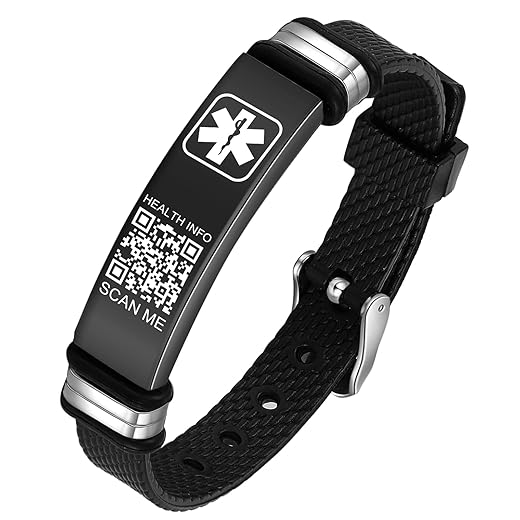
Who will actually get the alert — are you sure you’ve picked the right person?Add emergency contacts and set priority so a trusted person gets notified first. Open the Health app on my iPhone, tap Medical ID > Edit, and add contacts with full names and phone numbers. Mark each contact’s relationship.
Prioritize contacts by adding them in order: primary (who will respond), then secondary (neighbor, caregiver), then backup (landline, alternate family).
Include for each contact:
Confirm each contact can be reached by phone, send a quick message explaining the plan, and test notifications with a consenting contact to verify they receive alerts.
Step 4: Teach the senior what to expect
What happens when the watch asks 'Are you OK?' — let’s make that less scary.Sit down with the senior and explain the chime, vibration, the “Are you OK?” alert, and the 30‑second countdown before the watch calls emergency services. Demonstrate the sound and feel so they aren’t startled.
Demonstrate the screen options and practice simple scenarios:
Explain that staying still during the countdown triggers the call, and they can cancel anytime within 30 seconds. Reassure them about privacy: alerts go only to chosen contacts and emergency services. Encourage a snug fit and wearing the watch during active hours. Leave a printed quick‑reference with contacts and steps.
Step 5: Test Fall Detection safely
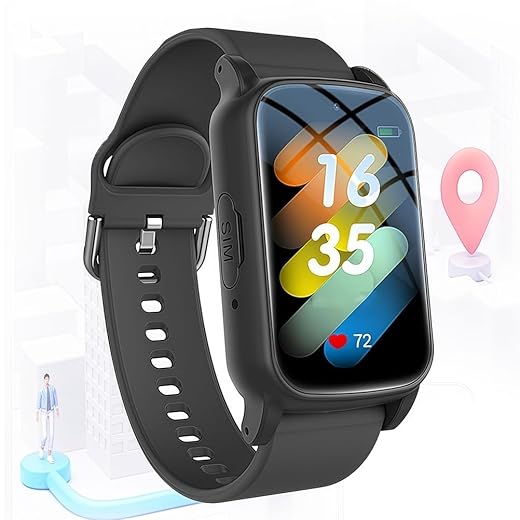
Want to break the system? Test carefully—no risky stunts, just smart checks.Run a watch-only test: I drop my wrist quickly while seated to trigger the motion sensor, then cancel the alert during the 30‑second countdown so no call goes out.
Simulate a no‑response scenario: I let the countdown expire on my wrist in a controlled place to see how the watch calls emergency services and notifies contacts — only doing this where I’m prepared to cancel before services are dispatched if possible.
Check the paired iPhone and location sharing: I confirm the iPhone receives the alert and that the watch shares accurate location with my emergency contacts.
Log results and adjust settings: I record what triggered, any false positives, and response times, then tweak sensitivity or advise activity changes.
I never stage risky falls; all tests are safe, supervised, and documented regularly.

Step 6: Monitor, review, and act on alerts
Don't set it and forget it — active monitoring and short drills save lives.Monitor alerts, review fall logs, and practice a response plan with caregivers so you can act fast. Check the iPhone’s notifications and the Health app regularly to see detected falls and timestamps.
When an alert arrives, call the senior immediately. Assess their voice, breathing, and ability to move. If they respond and are okay, note the time and cancel further action. If they cannot respond or show signs of injury, call emergency services or dispatch a caregiver depending on severity. For example, ask “Can you stand?” — if not, call 911.
Coordinate responsibilities and keep this information current:
Update the plan after any false alarm or real incident to improve it.

Stay proactive and keep reviewing
I now have Fall Detection enabled, tested, and integrated into a response plan that protects the senior. I’ll review regularly, discuss updates, test safely, and encourage you to try this too—then share your results so we all learn and improve.

Lol I screamed when the watch said “Did you fall?” the first time. 😆
But seriously, the testing step is crucial. I did a super safe test with a pillow and it worked perfectly. The guide’s instructions to add emergency contacts saved me hours of fumbling.
Pillow test is the best. 😂 Also double-check the emergency contact order — my partner was listed second and I was like ‘wait, what?’
Haha — glad it gave you a jump and not a panic! Love the pillow test idea. Remember to do the test with the senior’s consent and avoid risky movements.
Yesss sticky notes. Also record a short voice message you can replay so they remember why the watch might ask them questions.
Good tips all — and thanks for the humor, John. It makes the topic less intimidating for others.
Pro tip: put a sticky note on the fridge with the watch steps the first couple of days so the senior remembers.
Great guide — this walked me through everything when I set up my dad’s Series 9.
I especially liked the step about teaching the senior what to expect (Step 4). We practiced what the watch would say, and that made him less anxious.
One question: we got a couple of false alerts when he was gardening and bending over. Any tips to reduce false positives without turning off Fall Detection? Also wondering about battery impact if I keep monitoring on 24/7.
Another hack: when he does heavy bending or lying down for long periods, you can temporarily disable Fall Detection in the Control Center and re-enable later. Not ideal but works in a pinch.
We had the same gardening issue — wrapping a small bandana over the strap helped keep it more stable. Also ask the person to avoid loose clothing over the watch when possible.
Thanks, Maya — glad it helped! For false positives, try repositioning the watch a bit higher on the wrist (snug but comfortable). Also make sure the watchOS is up to date — Apple tweaked algorithms in recent updates. For battery: Fall Detection itself doesn’t use a ton of extra power, but continuous monitoring plus other features (like always-on display, health tracking, LTE) will. Try turning off always-on or reducing background app refresh if needed.
Solid guide. A few extra thoughts from my end:
1) Privacy — make sure the senior knows what data is shared when an SOS is triggered (location, health info, etc.).
2) Monitoring — Step 6 is key: set a weekly reminder to review alerts and battery health.
3) Real-world test: do a dry run where family practices the follow-up call after an alert so everyone knows their role.
Also, FYI — some seniors get anxious about ‘being watched’. I found framing it as “your safety net” rather than “surveillance” helps a lot.
Thanks everyone — great community tips. We’ll add a privacy section and a suggested weekly checklist in a future revision.
Weekly reminder is genius. I set a recurring calendar event: “Check watch & emergency contacts” and it saved me more than once.
Yep — I told my mom it’s like a “loud friend” that yells for help if she falls. She laughed and was less resistant.
Excellent points, Marcus. The privacy framing is important — an SOS shares location and the fact an emergency was called, but medical data is not automatically broadcast to emergency contacts. Still, transparency is crucial when introducing the device.
About the privacy bit — you can also limit what apps have access to Health data in Settings so they feel more in control.
Heads-up: I tried Step 5 (Test Fall Detection) and followed the safe test, but the alert didn’t reach my emergency contact right away. It went to my phone first. Is that normal? Maybe i messed up a setting 🤷♀️
That can happen — the watch will try to contact emergency services from the watch itself if it’s on cellular, otherwise it uses the paired iPhone. Emergency contacts get a message only after an SOS call is made. Double-check that Emergency SOS is enabled and that the watch and phone are connected during the test.
Yep, same here. My watch is on Bluetooth-only, so the iPhone relayed everything. If you need direct watch-to-server contact, you need the LTE model or Wi‑Fi/phone nearby.
I appreciate the safety emphasis. Quick nitpick: the guide could use a tiny flowchart for the steps (I learn visually). But otherwise very practical and easy to follow. 💡
Good suggestion, Ava — a flowchart or checklist would be a helpful visual. We’ll consider adding one in an update.
Agreed, a checklist PDF to print and hand to the senior would be 🔥
Thanks for the clear Step 3 on adding emergency contacts — that saved me from panic-mode.
Also: when you add contacts, make sure you label them correctly in the Health app (like ‘Daughter’ or ‘Neighbor’) so the watch shows who it’s contacting during an SOS. Small UX thing but it helps the senior know who’s calling.
Nice tip, Sam. Labeling helps reduce confusion during an alert. Also consider adding a close neighbor as a contact if they live nearby — sometimes they can respond faster than a family member.
If you have multiple family members, list one primary and then add backups. The watch sends a message to all emergency contacts but having a clear priority is still comforting.
Totally — we added ‘Home Nurse (Jane)’ and it made everything so much clearer when the alert popped up.
Also check that contacts have correct phone numbers — I once added the wrong area code and felt so dumb 😅